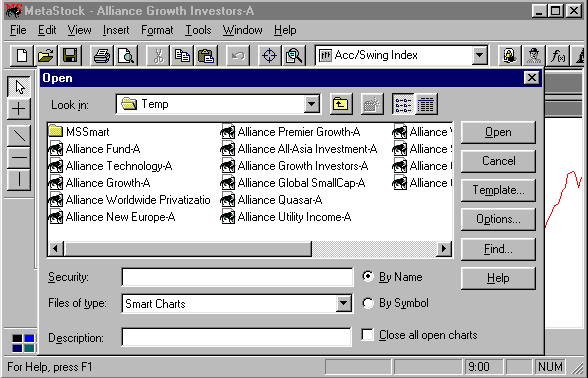
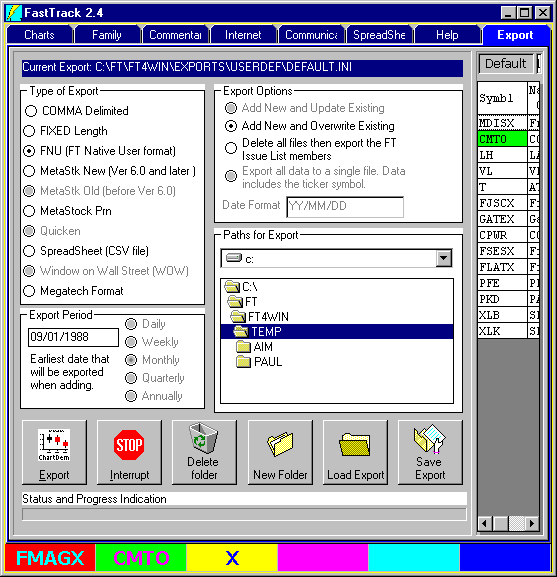
 FastTrack Export FastTrack Export
updated
01/13/20
What is Exporting and Why use It
FastTrack's exports dividend-adjusted data into formats
readable by other programs. There is NO provision to export unadjusted
data. However, the spreadsheet tab may compute it's results
without dividends and this sheet
may be exported.
The data exported is the data of ticker symbols in the
Issue List.
Exports can be performed automatically on startup
without having to interact with Ft4Web manually. Export Period
The Date range of the data exported is from the date you type in to the
current date. This is the "Export Period." There is no provision for
exporting to an ending date other than the last date in the FT database.
In the case of existing "MetaStock (6.0 - 11.0) files". The
export adds new data starting at the last day in the existing MetaStock data.
Earlier FT data will not be prefixed to the MetaStock data. If you wish to
extend the early data, then select the "Delete all files" Export Option,
below. Exception, when FT4WEB rewrites MetaStock data to to adjust for
distributions, the data is rewritten from the start of the Export Period.
|
Export Options
Add New Update Existing . . .This can be selected only for MetaStock files.
Delete all files then Export . . .
Selecting this Export Option always rewrites everything. Used this when
your data folder has become corrupted or you wish to clear out accumulated
trash.
Export all data to a single file . . .
The comma-delimited and Fixed length exports can be written to individual files
(named with the ticker symbol) or a single file (name defined below). The MetaStock PRN export is always to a single file.
- If the button is NOT selected, then the issues would each be written to
a different disk file.
- If the button is selected, then all issues in the list would be
written to a single file named XXXX.CSV (Comma-delimited) or XXXX.EXP
(fixed). Where XXX is a name of your choosing.
Note: On the FastTrack Export Tab, when you select "Export all list
issues to a single file" then the export goes to to a file shown at the top of
the Issue List as the "Issue List Name". This allows you to export (step 8
above) multiple families of issues each to a separate export name.
Date FormatWhen allowed, you fill this field in yourself.
There are many
options. This governs how the date is displayed. For some export types, the
date format is predetermined and cannot be changed.
|
Paths for Export
This folder list shows where the exported files will go. You must know
where your other programs expect their data files to exist.
FastTrack can remember where to export. Whenever you load a saved export, the
path associated with that export displays in the folder list.
- You may change the path temporarily. Choose a new path in the folder
list, then click the export button.
- If you want the new path to be permanent, push the Save Export
button.
Remember: Exported files go to the currently highlighted path.
Note: You can export Metastock data to any path for Metastock to
use. However you must tell Metastock what path to use to find the data. |
Export Button
Click this button when all options have been selected and you are ready to do
the export.
The hot key for this function is "E".
Stop Button
Click this button to interrupt the export. The issue currently being exported
will complete and then the process will stop.
The hot key for this function is "S".
New Folder Button
Clicking this button will create a new folder under the current folder
selected.
The new folder will automatically receive the current
family name above the Issue list. If you
want a different name, then click on the family name above the Issue List and
type in the new name before making a new folder.
The hot key for this function is "N".
Delete Folder Button
The folder currently highlighted will be deleted. Certain checks are made to
determine if the folder looks like a data directory. If FastTrack finds
programs or a large number of file types, then it will give you a chance to
chance your mind. Also, while it won't let you delete the root FT directory,
it does not prevent you from deleting other very important folders (like
C:\Windows ). Be as careful with FT's folder delete capability.
The hot key for this function is "D".
Load Export Button
- When you load an export, FastTrack reads a disk file that contains the all the
settings, the family name, the date format, the path to which files are
exported, etc. This way you can do the same export every day without having to
change settings. Exports are loaded, by default, in the C:\FT\FT4WIN\EXPORT\USERDEF
folder . . . but you may load an export from any folder, providing you
remember where.
The hot key for this function is "L".
Save Export Button
- When you save an export, FastTrack writes a disk file with the extension INI.
This file contains the all the settings, the family name, the date format, the
path to which files are exported, etc. This way you can load the same export
every day without having to change settings. Exports are saved, by default, in
the C:\FT\FT4WIN\EXPORT\USERDEF folder . . . but you may load an export from
any folder. You cannot save an export in the USERDEF folder when a export file
of the same name exists in the lower level EXPORT folder.
- The hot key for this function is "S".
Note: All hot key functions are performed while the mouse is on the blue
or yellow section of the export screen.
|
Comma Delimited Export Type - Export data in
comma-delimited format.
- The data elements are separated by commas. This is the most efficient way to
export single funds in a single file to spreadsheets and databases. Data is
exported to a text file named SYMBOL.CSV where SYMBOL is replaced by the
fund's 5-letter NASDAQ symbol. The file is placed in the FastTrack directory.
Data is exported in the following format:
DATE, JJJJJJ, CCCC.CC, DDDD.DDD, N
- DATE is the date as specified in the date format. Click
to see date formatting options. When in doubt use MM/DD/YYYY.
- JJJJJ is the julian date, i.e. the number of days since 12/31/1899.
- CCCC.CC is the Net Asset Value.
- DDDD.DDD is always 0000.000. Formerly with FastTrack for DOS, it was the
sum of all distributions paid on that day. FastTrack for the Web exports
only adjusted prices without dividends. The field was retained for
compatibility purposes.
- N is always the letter "N". It has no specific meaning. Also
retained for compatibility.
The lines of text are only as long as necessary to contain the values. The
spacing of the fields and commas will vary according to the data. The lines of
data are not all the same length although they always have the same number of
fields. Values are rounded to the third decimal place.
This format is suitable for import as a CSV into spreadsheets and for input to
a variety of PC programs.
|
Fixed Length - Export data in fixed length format.
This is an ASCII text format without any carriage returns at the end of each
line. The data values occur at fixed length intervals. Short number fields are
padded with blanks or zeros. This is often the best way to export data that
will subsequently be processed by a mainframe or database program that is
unable to accept comma-delimited formats. Data is exported to a text file
named SYMBOL.EXP where SYMBOL is replaced by the fund's 5-letter NASDAQ
symbol. The file is placed in the FastTrack directory. Data is exported in the
following format:
MM/DD/YYYY_JJJJJ_CCCC.CC_DDDD.DDD_N
Note: If you set the date format to something other than MM/DD/YYYY, then the
above line will be different. For field definitions click
here or see above
FastTrack Format (FNU) - Export into the FastTrack Import Format (FNU)
This exports data into a FastTrack ASCII text file with the extension FNU. See
Importing Data for more information on this format.
The benefit of using this type of export is that you could export an issue,
change the data (perhaps the most recent distribution is missing), and the
display it with corrections. By default symbols exported will end in a $ so
that the FNU file name does not duplicate a name already in the database. In
prior versions of the export, we appended an "A" to the name, but
this assumed that we were dealing with mutual funds whose symbols all end in
X. Now that the database also includes stocks, simply appending an A may make
an unintended valid symbol.
FundMaster Prn
This export creates individual files in any folder you specify. The file
named is the Symbol.PRN. The file
contains lines of ASCII text in the form. Fund Master was a popular DOS
program in the 1980's and many current analysis programs can still import FundMaster format data.
MM/DD/YY,
AAAA.AA
where,
- MM/DD/YY is the date
- AAAA.AA is the distribution- adjusted closing price in dollars and
cents.
- Symbol is the ticker symbol
Spreadsheet - Export in a multi-row/multi-column comma-delimited text file.
This format is for importing FastTrack data into spreadsheets. The data is in
ASCII, comma delimited, text in columns.
- The first column contains a Date in the form specified by the Date Format.
Click to see date formatting options
- The top row contains the comma-delimited, 5-letter text symbol for
each issue.
- Note that we use the CSV format since this format is compatible with
Excel, Quattro Pro, Lotus 1-2-3, and other spreadsheet and database
programs.
- Older spreadsheets cannot handle FastTrack's huge quantity of data. For
example, Microsoft Excel 97 is limited to 256 columns. AND . . .You better
have at least 64MB of memory and patience import anything close to a
256 column x 2000 row spreadsheet.
MetaStock Format (PRN) - Export an ASCII text for import by MetaStock's MSU
or Downloader utility.
In addition to exporting FastTrack data via New MetaStock export type,
FastTrack can export an ASCII text file that is compatible with MetaStock
pre-Version 6. The MetaStock MSU data import utility and Downloader (Newer MS versions).
Other programs like FundMaster can read this file format as well. Contact Equis for details on how to use MetaStock.
AutoExport Feature
When FastTrack starts it will automatically perform a saved export if you
wish. Here are the steps.
In the instructions below use saved file names that are simple. That is, no
spaces, no punctuation except for the a period, no network path names
- Save an export as discussed above in the path
C:\FT\FT4WIN\EXPORTS\USERDEF\ assuming that C:\FT\ is where you installed
FastTrack.
- In the following steps, we assume the saved export is named XXX. Test
the export manually to ensure that it works before going further. The
auto-exported data will go to same path as when you tested manually. Check
to ensure that this test worked.
- Start the
Windows Task Scheduler. "Create a Basic Task". Do the Trigger, Action,
and Finish parts of the creation process.
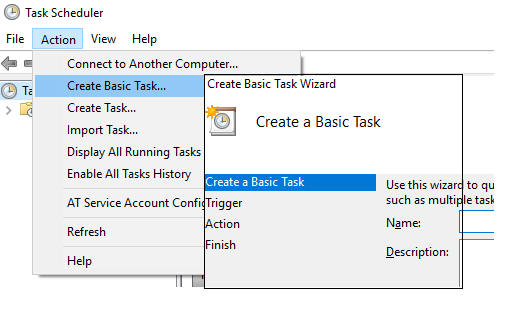
- Create a task named FTExport (or your choice of a name)
- Set the "trigger" schedule for it to run.
- Set the "Action" entering the "Program/Script" as
C:\FT\FT4WIN\FT4Win.exe, this is the charting (and exporting) program.
- Add the "arguments"----> /CMD
XXX[then optionaly],YYY,ZZZ
No quotes, no periods, space before and after /CMD. The XXX, YYY, and ZZZ are
one or more saved FastTrack exports separated by commas. All
must be saved individually in the standard export file location (typically
C:\FT\FT4WIN\EXPORTS\USERDEF\).
- The are a number of additional Task Manager properties that you can set
Please refer to the Microsoft provided
documentation.
When the export
completes, you may use FT normally or just shut it down. Using the task
manager you can also cause additional tasks to run after the export.
|